

Quick start: post your first job
This walk-through takes a freshly set-up site to its first live job. It assumes you have run the setup wizard.
Before you start: load a city list
Section titled “Before you start: load a city list”Jobs are placed in a city, and employers cannot choose a location until a city list exists. If you see the notice No cities have been loaded yet., select the button that imports the cities for your country, or Choose a different country. See Locations.
Add a company
Section titled “Add a company”- Go to WP Job Portal → Companies.
- In the WP Job Portal side menu, select Companies → Add New Company.
- If the form shows a user field, choose the employer who owns the company.
- Fill in the company details. Fields marked as required must be filled in.
- Leave Status on Approved so the company is live.
- Select Save Company.
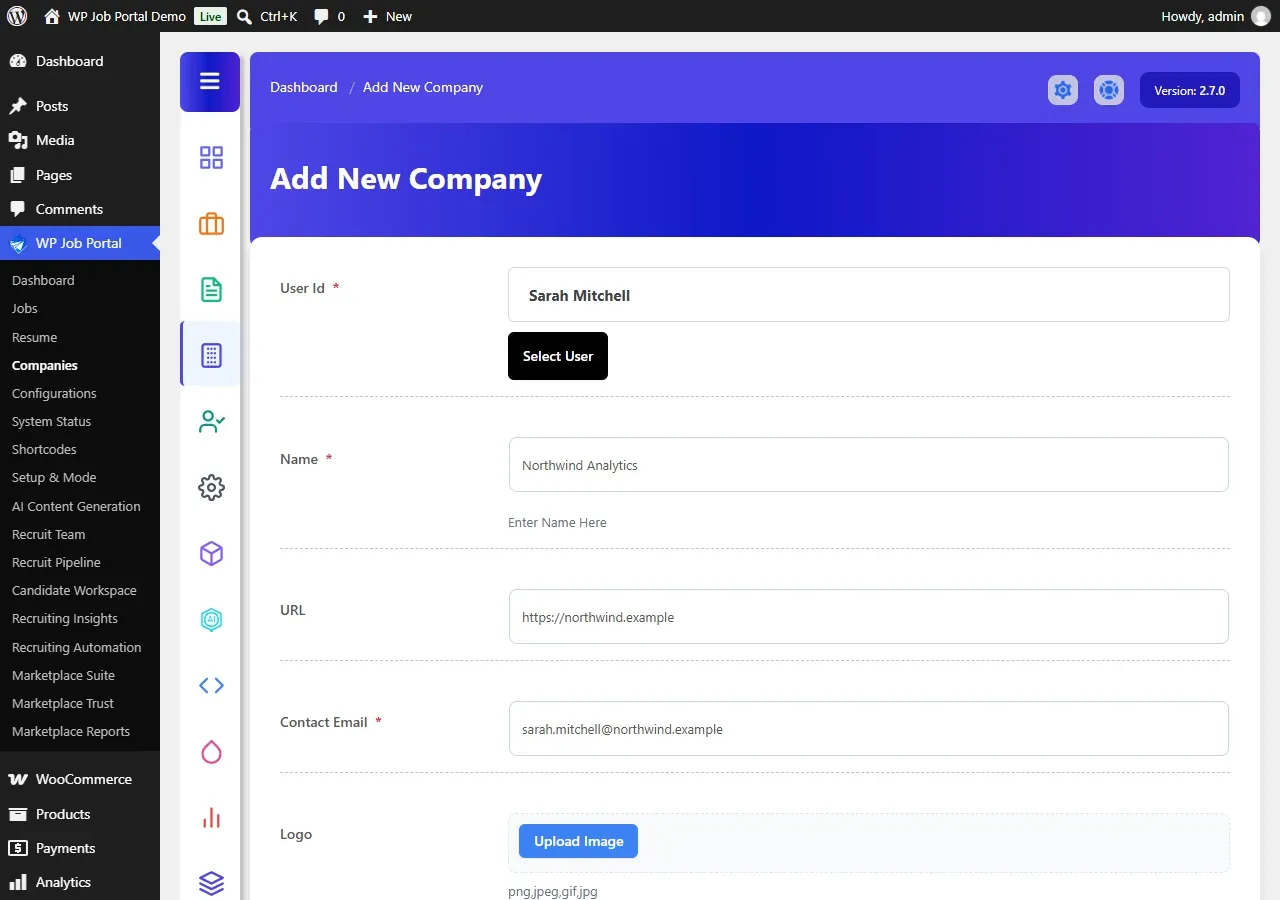
On a Careers & ATS site this is your own company profile. On a Job Marketplace site employers normally add their own companies from their dashboard; adding one here is the quickest way to try things out.
Post a job
Section titled “Post a job”- Go to WP Job Portal → Jobs.
- In the side menu, select Jobs → Add New Job.
- Fill in the job details and choose your company. Every field marked as required must be filled in; on a new site these include the title, category, job type, description and the start and stop publishing dates.
- Leave Status on Approved.
- Select Save Job.
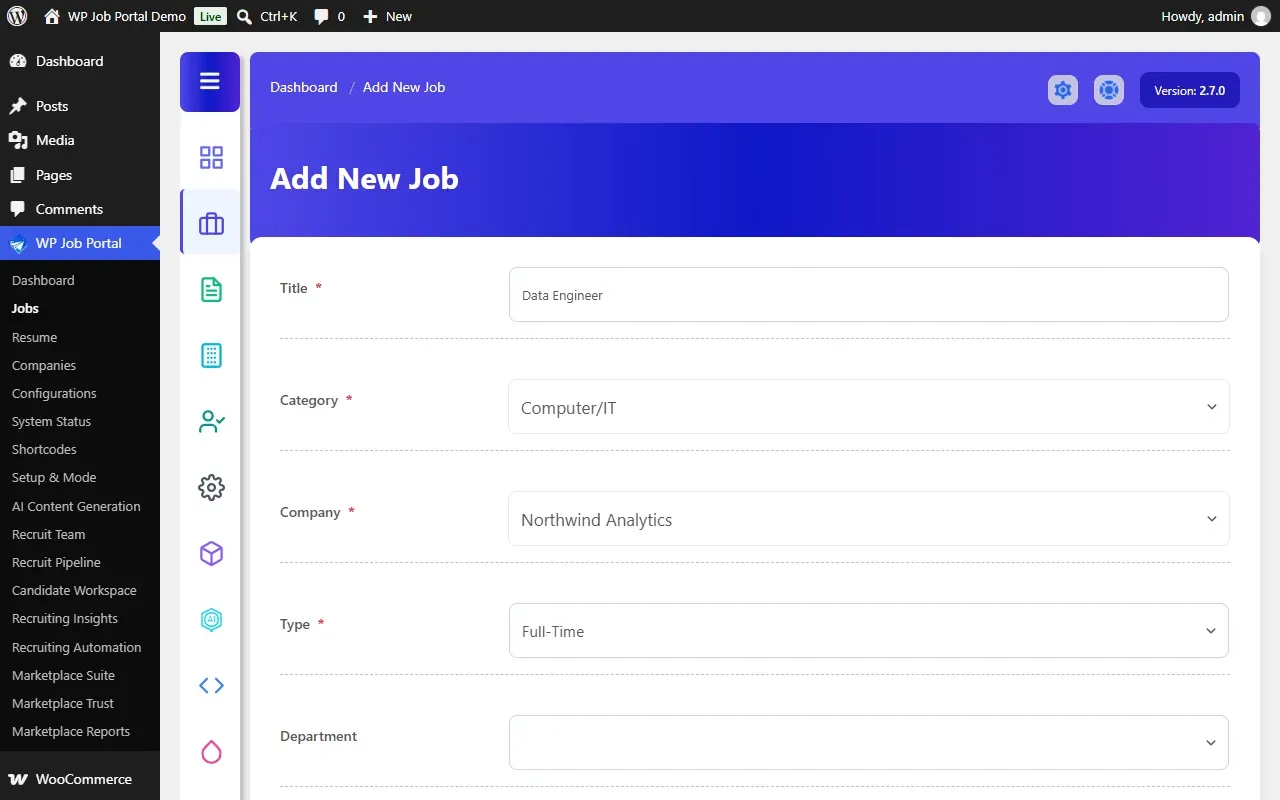
A job only shows on the site while its status is approved and today falls between its start and stop publishing dates.
Approve a job posted by an employer
Section titled “Approve a job posted by an employer”Jobs you add in the admin are approved straight away. Jobs that employers post from the front end wait for you when Publish New Jobs was set to No in the setup wizard.
- Go to WP Job Portal → Jobs.
- In the side menu, select Jobs → Approval Queue.
- Find the job and select Approve. Select Reject to turn it down.
On a Careers & ATS site the approval queue is not used: jobs are approved automatically. See Approving jobs.
See it on the front end
Section titled “See it on the front end”- Open the page that holds
[wpjobportal_job]. If the setup wizard created it, it is called Newest Jobs. - Check that your job appears, then select it to open the full job.
No job list page yet? Create a page, add [wpjobportal_job] in a Shortcode block and publish it. See Your job board’s pages.
Next steps
Section titled “Next steps”- Set up the email templates your users receive.
- Decide which fields employers and job seekers fill in, in the field manager.
- Send employers and job seekers to their guides: Posting a job and Searching and applying.