

Admin dashboard
The dashboard is the first screen of WP Job Portal in wp-admin. It shows what is waiting for you (pending jobs, new applications), recent activity, and links to the screens you use most.
Open the dashboard
Section titled “Open the dashboard”- In the WordPress sidebar, select WP Job Portal.
- The Dashboard opens. Its page title is Control Panel.
The WordPress sidebar lists only the main entries: Dashboard, Jobs, Resume, Companies, Configurations, System Status, Shortcodes, Setup & Mode and AI Content Generation. Everything else is in the plugin’s own menu, described below.
The plugin menu
Section titled “The plugin menu”Every WP Job Portal screen has its own menu on the left. Select a group to open it; select the menu icon at the top to collapse the menu.
| Group | What it holds |
|---|---|
| Dashboard | Dashboard, Slug, SEO, Import Third Party Data, Hooks, Activity Log, Stats, System Errors, System Status, Setup & Mode, How Modes Work |
| Jobs | Jobs, Add New Job, Approval Queue, Fields, Search Fields, Job Apply Configurations, Job Alert |
| Resume | Resume, Approval Queue, Fields, Quick Apply Fields. With Pro, also Search Fields |
| Companies | Companies, Add New Company, Approval Queue, Fields |
| Recruitment | Added by Recruit Suite (Recruit Team, Recruit Pipeline, Candidate Workspace, Recruiting Insights, Recruiting Automation) |
| Configuration | Configuration, Cron Job |
| Licences | Licences and add-ons, WordPress updates |
| AI Content Generation | AI Playground, Integration, Logs |
| Shortcodes, Colors | The shortcode list and the colour settings |
| Reports | Overall Reports. With Pro, also employer and job seeker reports |
| Departments, Cover Letters, Messages, Folders | Pro features. Without Pro they appear greyed out with a link to get them |
| Packages | Added by Marketplace Suite (Packages, User Packages, Invoices) |
| Address Data | Load Address Data, Location Name Settings, Countries / Cities |
| Job Types, Job Status, Highest Educations, Career Levels, Currency, Categories, Tags, Salary Range | The lists people choose from on forms |
| Users | Users, Assign Role, Fields |
| Email Templates | Options, then one entry per email |
| Help | Help |
What the dashboard shows
Section titled “What the dashboard shows”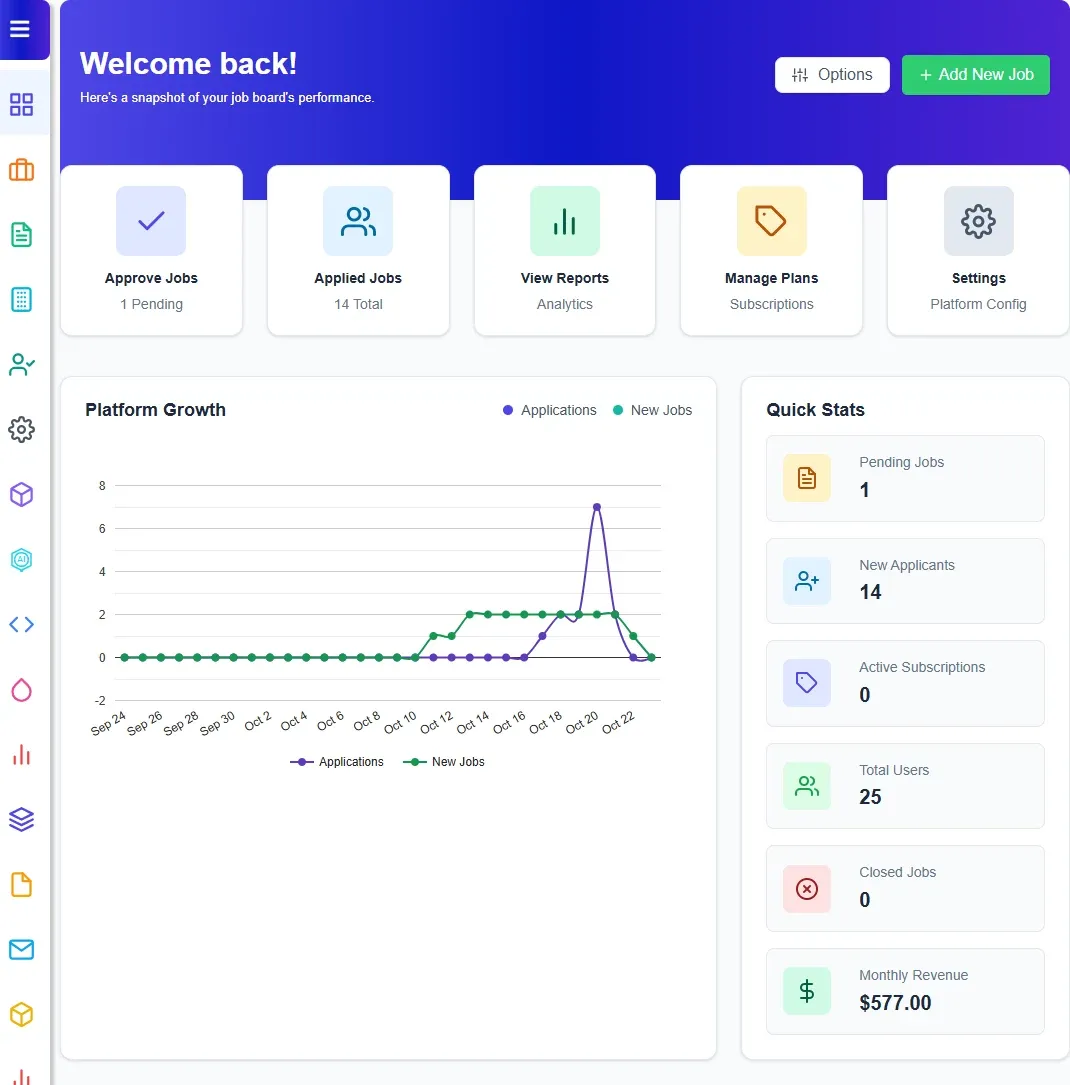
The header has two buttons: Options, to choose the cards (see below), and Add New Job.
| Card | What it shows |
|---|---|
| Quick Actions | Shortcuts: Approve Jobs (with the number pending), Applied Jobs (total applications), View Reports, Settings. With Marketplace Suite, also Manage Plans |
| Platform Growth | A chart of applications and new jobs over time |
| Quick Stats | Pending Jobs, New Applicants, Total Users, Closed Jobs. With Marketplace Suite, also Active Subscriptions and Monthly Revenue |
| Recent Job Postings | The latest jobs with company, date, status and an Edit link |
| Jobs By Status, Top Job Categories | Two charts |
| Latest Job Applies | Recent applications, each with View Apply |
| Latest Resumes | Recent resumes, with View All |
| Latest Activity | Entries from the activity log |
| System Error Log | Recent errors the plugin has recorded |
| Latest Job Seekers, Latest Employers | New registrations, each with View Profile |
| Latest Package Subscriptions, Latest Payments | Shown only with Marketplace Suite |
Choose which cards appear
Section titled “Choose which cards appear”- On the dashboard, select Options.
- In Customize Your Dashboard, switch cards on or off. They are grouped as Core Components, Visualizations, Activity & System Feeds and User & Financials.
- Select Apply Changes.
To bring back every card, open Options and select Reset To Defaults.