

AI job search and AI resume search
AI search replaces a form full of fields with one search box. Job seekers type what they’re looking for in their own words, and get jobs ranked by how well they match. Employers get the same for resumes.
How AI search works
Section titled “How AI search works”Each time a job or resume is saved, WP Job Portal stores its searchable text: the title, category, type, location, salary and other details, and separately the longer text such as the description and tags.
When someone searches, Smart Search & Matching:
- Looks for jobs or resumes whose title matches the search exactly, and ranks them first.
- For searches of up to three words, looks for the exact phrase in the details.
- Scores everything else by relevance, first on the details and then on the description.
- Adds words that mean the same thing, so “programmer” also finds “developer”. Exact matches still rank above these.
- Drops results that score far below the best one, so the list isn’t padded with weak matches.
Job search only returns published jobs that are inside their publishing dates. Resume search only returns approved resumes, and leaves out quick-apply resumes.
The ranked list is kept for an hour for each visitor, so moving between result pages is fast and the order doesn’t change while they page.
Turn on AI search
Section titled “Turn on AI search”- Open WP Job Portal → Configurations → Feeds & AI.
- Under AI Suggested Matches, set the options below.
- Save the settings.
| Option | What it does |
|---|---|
| AI Search On Job Search Page | Replaces the fields on the job search page with the AI search box |
| AI Search Filter On Job Listing | Replaces the filter on the job listing page with the AI search box |
| AI Search On Resume Search Page | Replaces the fields on the resume search page with the AI search box. Needs Pro. |
| AI Search Filter On Resume Listing | Replaces the filter on the resume listing page with the AI search box. Needs Pro. |
Each option is either/or: with it on, visitors see the AI box instead of the usual search fields on that page.
See Feeds & AI settings for the other options on that tab.
What visitors see
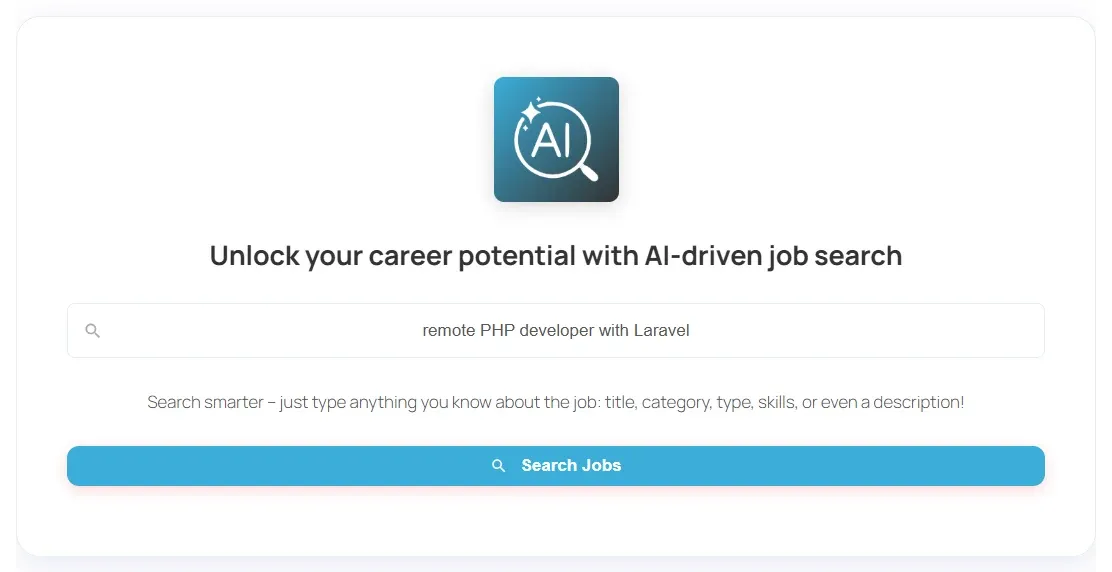
Section titled “What visitors see”On the job search page, the AI box reads Unlock your career potential with AI-driven job search, with the placeholder Ready to find your dream job? Let’s get started. On listings, the field’s placeholder is AI Job Search or AI Resume Search.
If smart matching is on, job seekers also see a match badge on each result. See Smart matching and scores.
The AI search widgets
Section titled “The AI search widgets”Two widgets put an AI search box in any widget area:
- AI Job Search
- AI Resume Search
They ship with Pro’s widgets and appear under Appearance → Widgets only when Smart Search & Matching is active. AI Resume Search also needs Pro’s resume search.
| Setting | What it does |
|---|---|
| Title | The widget heading |
| Show Title | Shows or hides the heading |
| Layout | Vertical or Horizontal |
| Field Label | Text above the search box |
| Field Placeholder | Text inside the empty search box |
| Show Label / Show Labels | Shows the field label |
| Show Placeholder / Show Placeholders | Shows the placeholder |
| Use Icons for Buttons | Shows icons instead of button text |
| Show Advanced Search Button | Adds a link to the full search page |
| Custom Field Class | A CSS class added to the field, for your own styling |
See Widgets for adding widgets.