

Cover letters
A cover letter is a short letter you send with your resume. You can keep several, for example one for each kind of job, and choose the right one each time you apply.
Write a cover letter
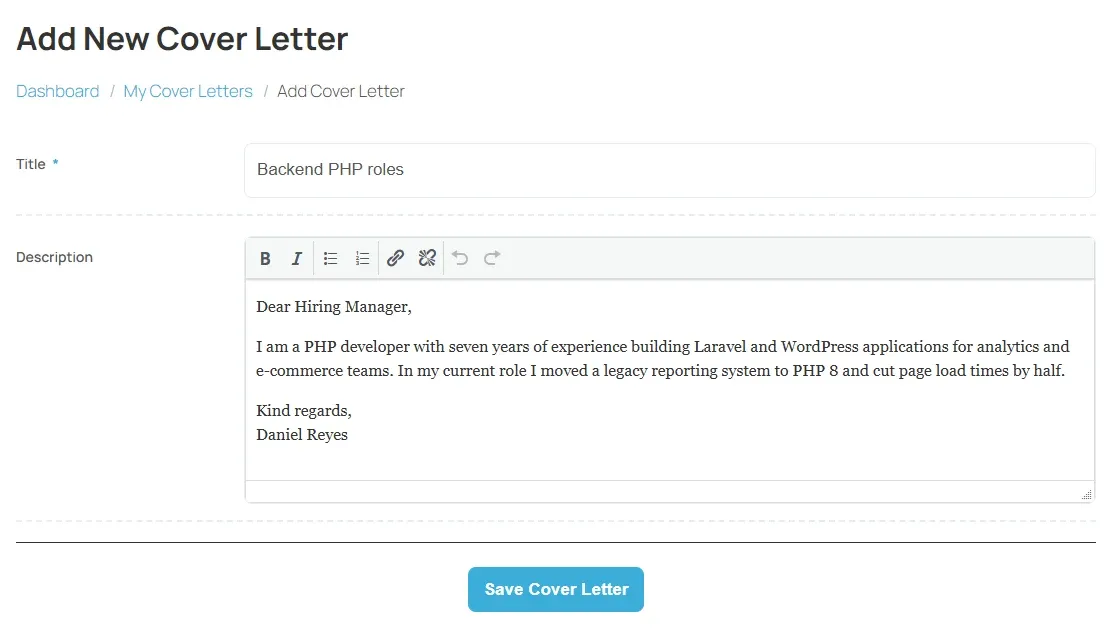
Section titled “Write a cover letter”- On your dashboard, select Add Cover Letter.
- Enter a Title you will recognise in a list, such as “Retail roles”.
- Write the letter in Description.
- Select Save Cover Letter.
Some sites offer AI help when you write the letter. If yours does, you see a Zywrap Copilot panel with a Generate Cover Letter button that drafts the text for you to edit.
Manage your cover letters
Section titled “Manage your cover letters”Open My Cover Letters from the dashboard. Each letter has these buttons:
| Button | What it does |
|---|---|
| View Cover Letter | Shows the letter. |
| Edit Cover Letter | Opens it to change the title or text. |
| Delete Cover Letter | Deletes it after you confirm. |
To write another letter, select Add New Cover Letter at the top of the list.
Approval
Section titled “Approval”Each letter in My Cover Letters shows its status. Some sites check cover letters before you can use them, so a new letter may show Pending before it changes to Approved, or to Rejected if it is not accepted. On sites that charge for cover letters, it shows Pending Due To Payment until you pay.
Only approved cover letters appear when you apply.
Send a cover letter with an application
Section titled “Send a cover letter with an application”When you apply for a job, the apply form has a Cover Letter list under your resume.
- Choose a cover letter from the list.
- Finish applying as usual. See Searching and applying.
If you have no approved cover letters, the form shows No Cover Letter with an Add Cover Letter link that opens the form in a new tab.
On sites with the AI writing assistant turned on, the apply form has two tabs instead: ✨ Create with Copilot lets you write a new letter for this job there and then, with a Document Title; 📁 Use Pre-Saved lets you choose a letter you already have.
The cover letter title appears with the application in My Applied Jobs.