

Stripe
Stripe takes card payments on Stripe’s own hosted checkout page. Buyers leave your site to pay and come back when they are done. Card details never touch your server, and cards that ask for extra authentication work.
What you need from Stripe
Section titled “What you need from Stripe”- Your publishable key and secret key, from the Stripe Dashboard under Developers → API keys.
- A webhook endpoint pointing at your site, and its signing secret (it starts with
whsec_).
Stripe has separate test and live keys. WP Job Portal has no test-mode switch for Stripe: it uses whichever keys you enter. Use your test keys while you set up, then replace them with live keys.
Enter your keys
Section titled “Enter your keys”- Open WP Job Portal → Configurations → Payment Gateways.
- In the Stripe group, turn on Enable Stripe.
- Paste your Publishable Key and Secret Key.
- Leave Webhook Signing Secret for now. You add it in the next section.
- Select Save.
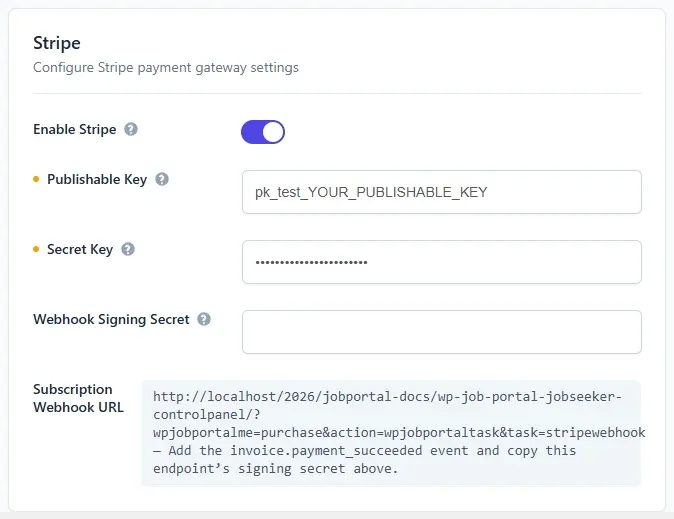
The Payment Gateways tab only appears when Marketplace Suite is active. The same fields are on the Payment Method Configurations screen (admin.php?page=wpjobportal_paymentmethodconfiguration). On that screen, secret fields that are already saved show Stored — enter a value only to replace it. Leave them blank to keep the saved value.
Add the webhook
Section titled “Add the webhook”The webhook is how Stripe tells your site a payment went through, even if the buyer closes the browser before coming back.
- On the Payment Gateways tab, copy the Subscription Webhook URL. It is an address on your site containing
task=stripewebhook. - In the Stripe Dashboard, open Developers → Webhooks and add an endpoint with that URL.
- Select these events:
checkout.session.completed, which confirms one-off purchases and the first payment of a subscriptioninvoice.payment_succeeded, which confirms subscription renewals
- Save the endpoint and copy its signing secret.
- Back in WP Job Portal, paste it into Webhook Signing Secret and select Save.
Every webhook is checked against the signing secret. A webhook without a valid signature, or arriving before both the secret key and signing secret are saved, is refused.
Renewals are matched using the subscription and charge fields of the invoice in each invoice.payment_succeeded event. The Stripe library in Marketplace Suite is built for API version 2024-12-18.acacia. When you create the endpoint, choose that API version if Stripe offers it. A renewal whose invoice has no subscription or charge field is refused and not recorded.
One-off payments
Section titled “One-off payments”Packages without a subscription and every per-listing purchase are charged once. The amount and currency come from the package or from your per-listing settings. The currency’s code must be one Stripe accepts.
When the payment succeeds, the buyer comes back to your site and sees Your payment has been received. If the webhook confirms it first, they may see Your payment is being confirmed. This page will show it once it is. Either way the purchase is recorded once.
Subscriptions
Section titled “Subscriptions”A Stripe subscription bills against a recurring price (plan) that you create in Stripe.
- In the Stripe Dashboard, create a product with a recurring price. Give the price a nickname, because that is the name WP Job Portal lists.
- In WP Job Portal, edit the package in Packages.
- Set Stripe Subscription to Yes. The list of plans loads from Stripe.
- Choose the plan and select Save Package.
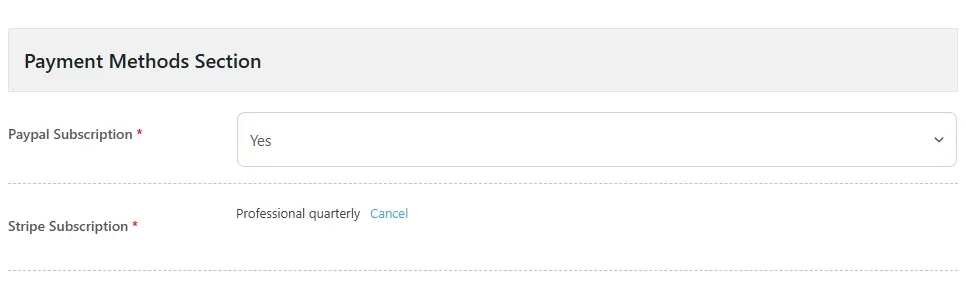
Make the plan match the package:
- Amount and currency: each renewal is only recorded if Stripe charged exactly the package Price in the package currency. The package Discount is not applied to renewals.
- Billing period: Stripe bills on the plan’s interval. Each successful payment grants the package again for its Package Expiry, so set the two to the same length.
To unlink a plan, edit the package and select Cancel next to the plan name.
Buyers can cancel a Stripe subscription themselves with Cancel under My Subscriptions. This cancels it in Stripe.
The plan list is loaded with a single request to Stripe and shows the first 10 plans Stripe returns, inactive ones included. If the plan you want is missing, delete plans you no longer use in Stripe.