

Featured listings and promotions
A featured job, company or resume is highlighted in listings for a set period. Marketplace Suite adds featuring for all three, and a promotion schedule that lets an employer book a featured period for a job in advance.
Turn featured listings on
Section titled “Turn featured listings on”- Open WP Job Portal → Configurations → Monetization.
- In Packages & Featured Listings, turn on Enable Featured Jobs, Enable Featured Companies and Enable Featured Resumes as you need.
- Select Save.
To review featured requests before they go live, open the Applications tab and turn off Featured Job Auto Approve, Featured Company Auto Approve or Featured Resume Auto Approve in Auto-Approve Rules. Featured requests then wait in the approval queue, and the owner sees Featured Approval Waiting.
How featuring is paid for
Section titled “How featuring is paid for”Employers feature a job or company with Add Featured in their dashboard. Job seekers feature a resume the same way. What happens next depends on your submission type:
| Submission type | Cost | How long it lasts |
|---|---|---|
| Free | Nothing | Days Until Featured Job Expires Free, and the matching company and resume fields |
| Per Listing | Price per Featured Job, Price per Featured Company or Price per Featured Resume | Days Until Featured Job Expires Per Listing, and the matching company and resume fields |
| Membership | One use of Number Of Featured Jobs, Number Of Featured Companies or Number Of Featured Resumes from a package | The package’s Featured Job Expiry, Featured Company Expiry or Featured Resume Expiry |
All of these fields are on the Monetization tab, except the package fields, which are on each package.
When the featured period ends, the listing goes back to normal and can be featured again.
Feature a listing yourself
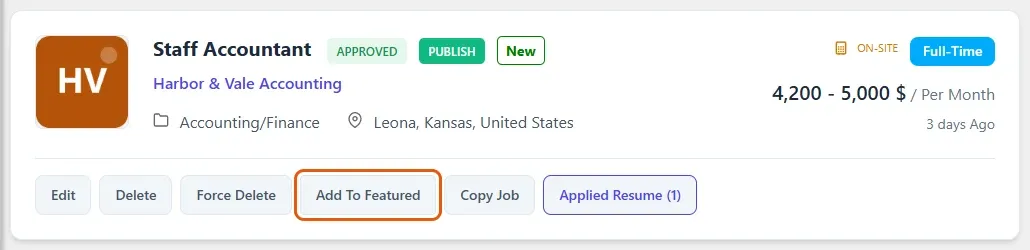
Section titled “Feature a listing yourself”In the admin jobs list, select Add To Featured on a job. Select Remove Featured to end a featured period early. Companies and resumes work the same way in their own lists.
Schedule a featured job
Section titled “Schedule a featured job”The promotion schedule lets an employer pick the date and time a job’s featured period starts. The length comes from the package, and the use is taken from the package.
The employer needs:
- an approved job
- an active package with a featured-job use left
- a Featured Job Expiry set on that package
To schedule a promotion, the employer:
- Opens their dashboard and selects Promotion Schedule under Marketplace.
- In Schedule a featured job, chooses a company, a job and a package.
- Sets Starts to at least five minutes in the future.
- Selects Schedule promotion.
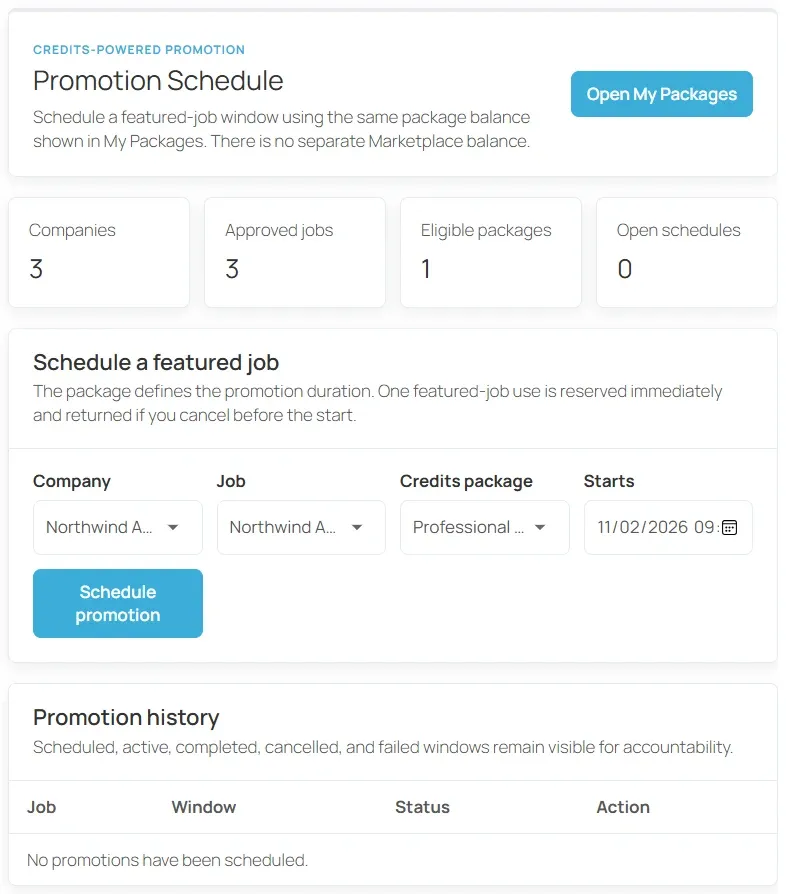
One featured-job use is reserved straight away. If the employer selects Cancel before the start time, the use goes back to the package.
A promotion is refused if:
- the job already has a featured period that overlaps it
- the package would expire before the promotion ends; the message gives both dates
- the package has no featured duration set
Requests from recruiters
Section titled “Requests from recruiters”If your site also runs Recruit Suite, company recruiters can open Promotion Schedule too. A recruiter’s promotion is a request: nothing is reserved until the company owner or a company admin selects Approve. Decline turns it down. A request that is still waiting when its start time passes cannot be approved and has to be made again.
When a promotion starts and ends
Section titled “When a promotion starts and ends”A WordPress scheduled task checks promotions every five minutes. When a promotion’s start time arrives, the job is featured, subject to Featured Job Auto Approve. When the window ends, the featured flag is removed. Promotions that cannot start, for example because the job was removed, are marked failed and their use is returned.
Every promotion stays listed in Promotion history with its status: scheduled, active, completed, cancelled or failed. You can see all of them in Marketplace Reports under Featured-job schedules.
Turn the employer’s Marketplace menu on or off with Show Marketplace Menu in the Dashboard group on the Employers settings tab.