

Messages
Messages let you talk to applicants without leaving the job board. Each conversation is tied to a job and an applicant, so you always know who and what it is about.
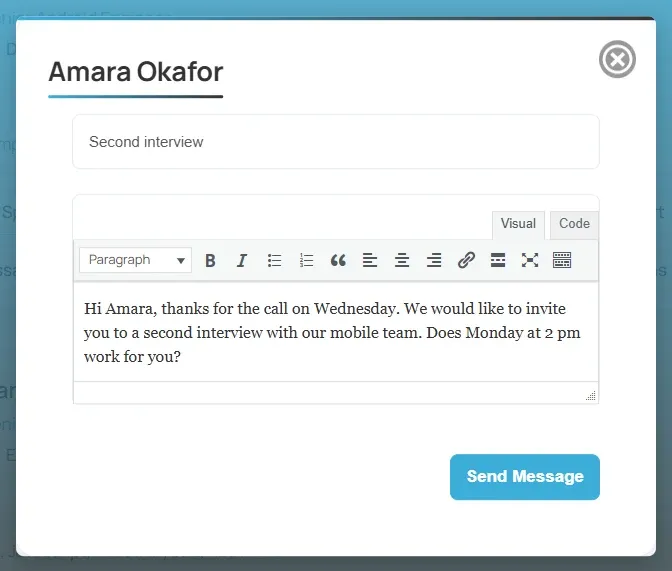
Send a message to an applicant
Section titled “Send a message to an applicant”- Open My Jobs, then Resume (n) on the job.
- On the applicant, select Send Message. On some job boards it is inside the More Actions list.
- Type a Message Subject.
- Write your message.
- Select Send Message.
Read your messages
Section titled “Read your messages”- On your employer dashboard, open Short Links → Messages.
- Each entry shows the job title, the company, and Messages (n) with the number of messages.
- Select Messages (n) to see the job’s conversations. Job Messages lists each applicant you have written to, with a link to their resume.
- Select Messages (n) on an applicant to open the conversation.
The conversation page shows Message History. Each message says who wrote it, You sent or Job seeker sent, and when it was Created.
- Type your answer in Reply Message.
- Select Send Message.
Messages waiting for approval
Section titled “Messages waiting for approval”Some job boards check messages before they are delivered. Until then, your message carries a pending tag in the history, and the job seeker does not see it yet. A message the job board turns down is tagged rejected.