

Approving jobs
When auto-approve is off, jobs that employers post wait in the approval queue until you approve them. Nothing in the queue shows on the site. Use it when you want to check every listing before it goes live.
Open the approval queue
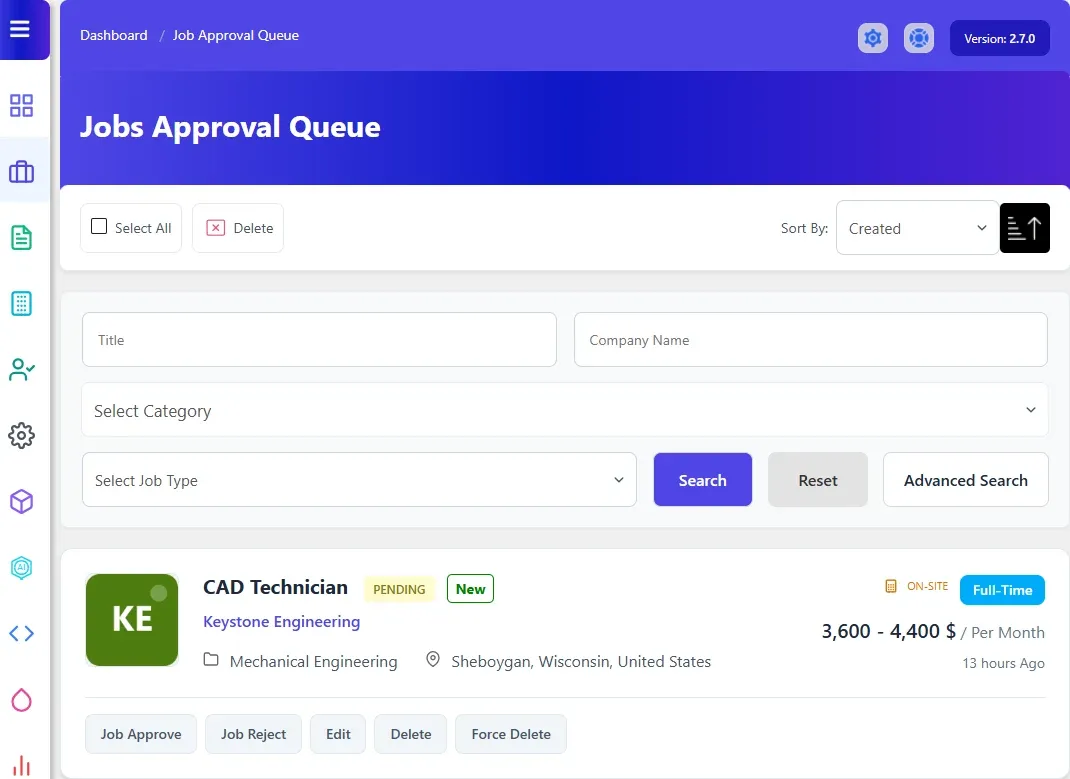
Section titled “Open the approval queue”Go to WP Job Portal → Jobs → Approval Queue. The page is titled Jobs Approval Queue.
You can also select Approve Jobs on the dashboard; it shows how many jobs are pending.
The queue has the same search and sort tools as the jobs list, without the status filter.
Approve or reject a job
Section titled “Approve or reject a job”- Select the job title or Edit if you want to read or correct the job first.
- In the queue, select Job Approve or Job Reject on the job’s row.
| Action | What happens |
|---|---|
| Job Approve | The job becomes Approved and leaves the queue. Its publishing dates restart from today and keep the same length, so a 30-day job runs 30 days from approval. The employer gets the Job Status email |
| Job Reject | The job becomes Rejected and leaves the queue. The employer gets the Job Status email |
Both approved and rejected jobs then appear in Jobs. To approve a job you rejected, edit it there and set Status to Approved.
The emails are set up in Email Templates → Job Status. See Email templates.
Delete jobs from the queue
Section titled “Delete jobs from the queue”Each row also has Delete and Force Delete. They work as in the jobs list: Delete refuses if the job has applications, Force Delete removes the job and its applications. To delete several, tick them and select Delete at the top. See Managing jobs.
Turn auto-approve on or off
Section titled “Turn auto-approve on or off”- Go to WP Job Portal → Configuration and open the Jobs tab.
- Under Job Posting & Management, set Job Auto Approve.
- Select Save Changes.
With Job Auto Approve on, new jobs are approved as soon as they’re posted and never reach the queue. Jobs you add yourself in wp-admin use the Status you pick on the form, whatever this setting says.