

AI settings
The AI settings screen sets up the AI for your whole site: which engine writes the text, which features people can use, how much they can use, and what is removed before anything is sent.
Go to WP Job Portal → AI → Settings. The line at the top says where things stand, for example AI is on, but no engine is set up yet. The screen has four tabs: Engine & account, Features, Usage & limits and Privacy.
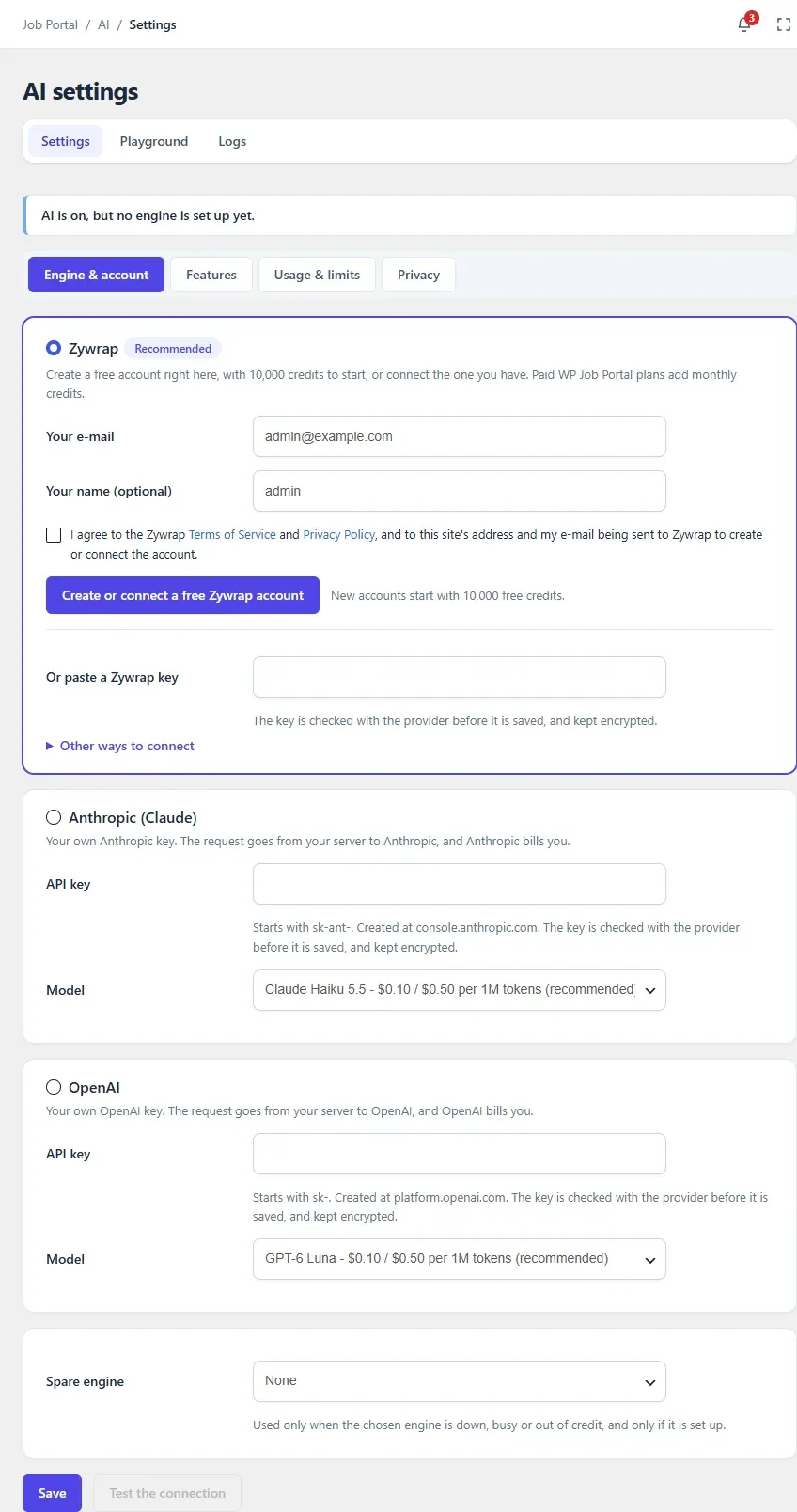
Choose an engine
Section titled “Choose an engine”On the Engine & account tab, each engine has a card. Select the round button on the card of the engine you want to use, set it up, and select Save.
Zywrap
Section titled “Zywrap”Zywrap is the recommended engine. You don’t need to copy a key: the site creates or connects the account for you.
- On the Zywrap card, check Your e-mail and, if you like, enter Your name (optional).
- Tick the box to agree to the Zywrap Terms of Service and Privacy Policy, and to your site’s address and e-mail being sent to Zywrap.
- Select Create or connect a free Zywrap account.
- Zywrap e-mails you a code. Enter it in 6-digit code from the e-mail and select Connect. If it doesn’t arrive, select Send a new code.
If the e-mail already has a Zywrap account, the same steps connect that account. New accounts start with 10,000 free credits.
Other ways to connect:
- Or paste a Zywrap key: a key from the API keys page of your Zywrap account. The key is checked with Zywrap before it is saved, and kept encrypted.
- If you sign in to Zywrap with Google, GitHub or two-factor sign-in, open Other ways to connect and select Connect on zywrap.com instead. You sign in there and come back to this screen connected.
Once connected, the card shows Connected, the account, the last part of the key and the credits available, with Buy credits on zywrap.com.
| Option | What it does |
|---|---|
| Model | The AI model Zywrap uses. Let Zywrap choose (recommended) leaves the choice to Zywrap |
| Zywrap catalogue | Zywrap’s library of ready-made prompts, used by the Playground. Download the catalogue the first time, then Get updates |
| Disconnect Zywrap | Removes the account from this site |
Licence credits
Section titled “Licence credits”Paid WP Job Portal plans include Zywrap credits every month. The Zywrap card says how many your licence adds. The licence must be active under WP Job Portal → Licences. See Products and licences.
- Connect a Zywrap account.
- Select Claim the licence credits.
The card then shows how many credits are left this month and when they refill. If Zywrap hasn’t added them yet, it says so and checks again twice a day.
Anthropic (Claude) or OpenAI
Section titled “Anthropic (Claude) or OpenAI”Use your own key if you already have an account with Anthropic or OpenAI. The request goes from your server to that provider, and it bills you.
- On the Anthropic (Claude) or OpenAI card, paste the API key. An Anthropic key starts with
sk-ant-and is created at console.anthropic.com; an OpenAI key starts withsk-and is created at platform.openai.com. - Choose the Model. The list shows each model’s price per million tokens; the first one is recommended.
- Select Save.
The key is checked with the provider before it is saved, and kept encrypted. Once a key is saved, the field says Key saved: leave it empty to keep the key. Remove the … key deletes it from the site.
Spare engine and test
Section titled “Spare engine and test”- Spare engine is used only when the chosen engine is down, busy or out of credit, and only if it is set up. Leave it at None if you don’t want one.
- Test the connection checks the chosen engine. For Zywrap it uses Zywrap’s free key check, so it costs no credits. It reports a bad key or an account with no credits left.
Switch features on or off
Section titled “Switch features on or off”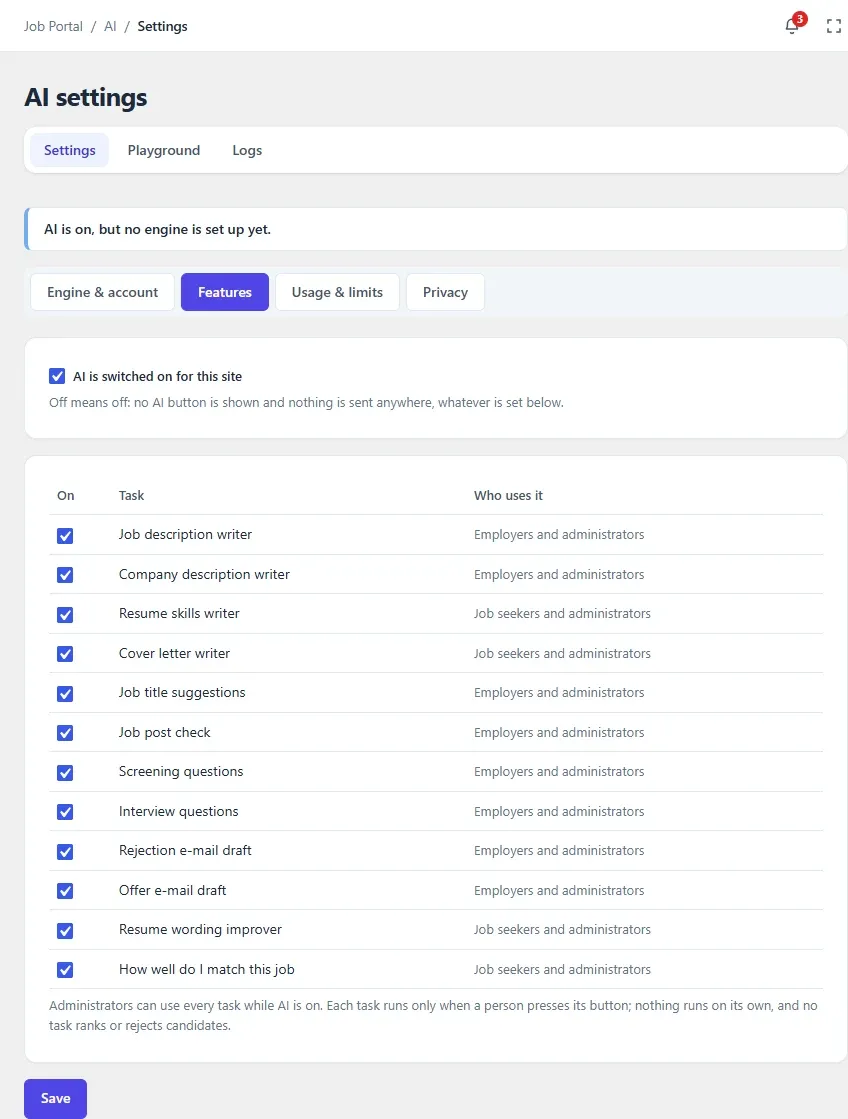
On the Features tab:
- AI is switched on for this site is the master switch. Off means off: no AI button is shown and nothing is sent anywhere, whatever is set below.
- The table lists every AI task with Who uses it. Clear On for a task to hide it from employers and job seekers.
| Task | Who uses it |
|---|---|
| Job description writer | Employers and administrators |
| Company description writer | Employers and administrators |
| Resume skills writer | Job seekers and administrators |
| Cover letter writer | Job seekers and administrators |
| Job title suggestions | Employers and administrators |
| Job post check | Employers and administrators |
| Screening questions | Employers and administrators |
| Interview questions | Employers and administrators |
| Rejection e-mail draft | Employers and administrators |
| Offer e-mail draft | Employers and administrators |
| Resume wording improver | Job seekers and administrators |
| How well do I match this job | Job seekers and administrators |
Every task is on by default. Administrators can use every task while AI is on.
The four writers share their switches with the Zywrap AI settings tab, so changing one changes the other: Job description writer is Enable Job Copilot, Company description writer is Enable Company Copilot, Resume skills writer is Enable Resume Copilot and Cover letter writer is Enable Cover Letter Copilot. The cover letter writer on the apply form has its own option there, Enable Cover Letter Copilot On Job Apply.
Select Save after changing the tab.
Set limits
Section titled “Set limits”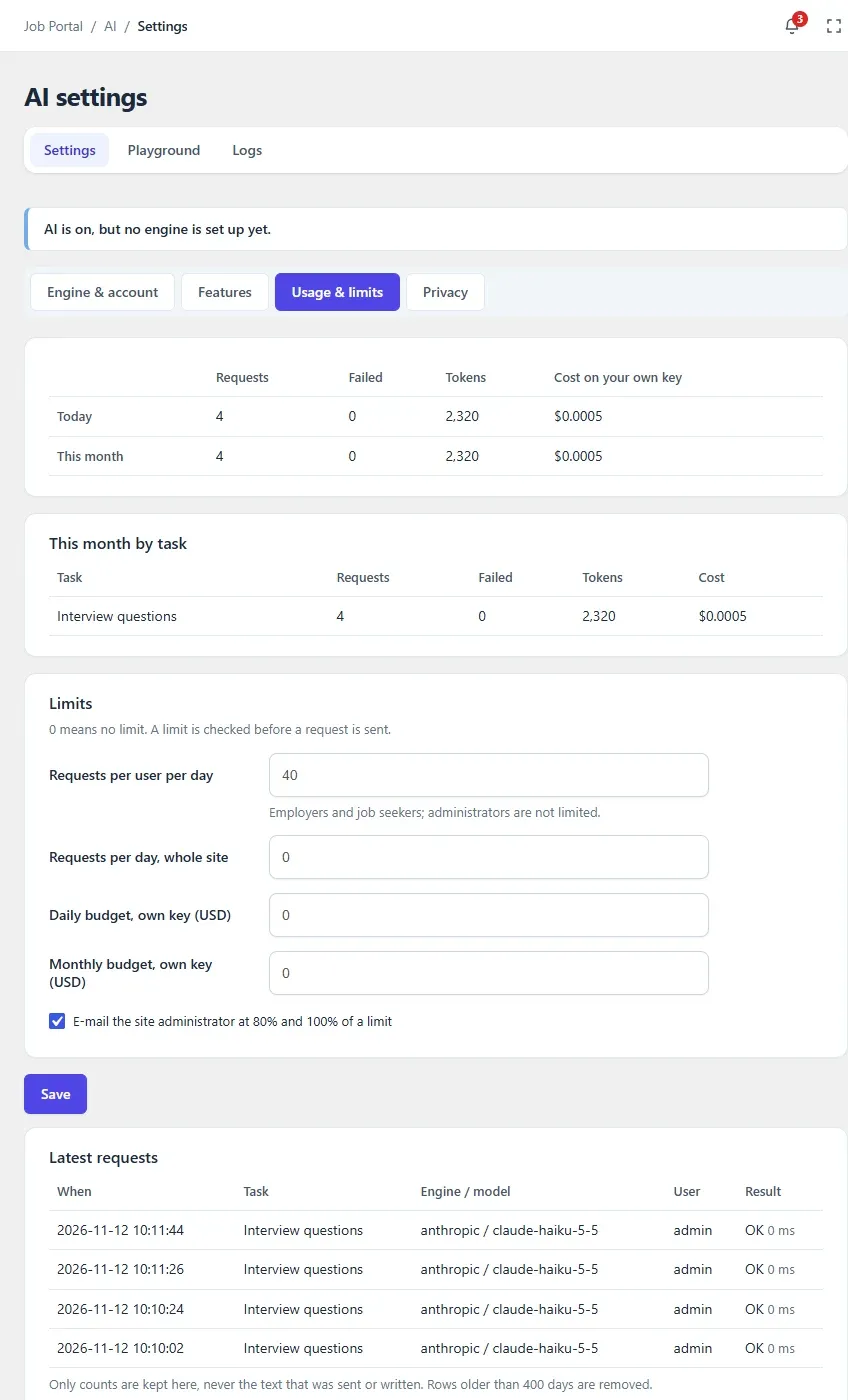
The Usage & limits tab shows how much the AI is used and sets limits.
At the top are the Requests, Failed requests, Tokens and Cost on your own key for Today and This month. Requests that ran on Zywrap credits are not part of the cost; their number is shown in brackets beside it, as … on Zywrap credits. This month by task splits the month by task, and Latest requests lists the most recent ones with when, task, engine and model, user and result.
Only counts are kept, never the text that was sent or written. Rows older than 400 days are removed.
Under Limits, 0 means no limit. A limit is checked before a request is sent.
| Option | What it does | Default |
|---|---|---|
| Requests per user per day | How many AI requests one employer or job seeker can make a day. Administrators are not limited | 40 |
| Requests per day, whole site | How many AI requests the whole site can make a day | 0 |
| Daily budget, own key (USD) | The most your own Anthropic or OpenAI key may spend in a day | 0 |
| Monthly budget, own key (USD) | The most your own key may spend in a month | 0 |
| E-mail the site administrator at 80% and 100% of a limit | Sends a warning as a limit is reached | On |
Select Save after changing a limit.
Choose what is removed
Section titled “Choose what is removed”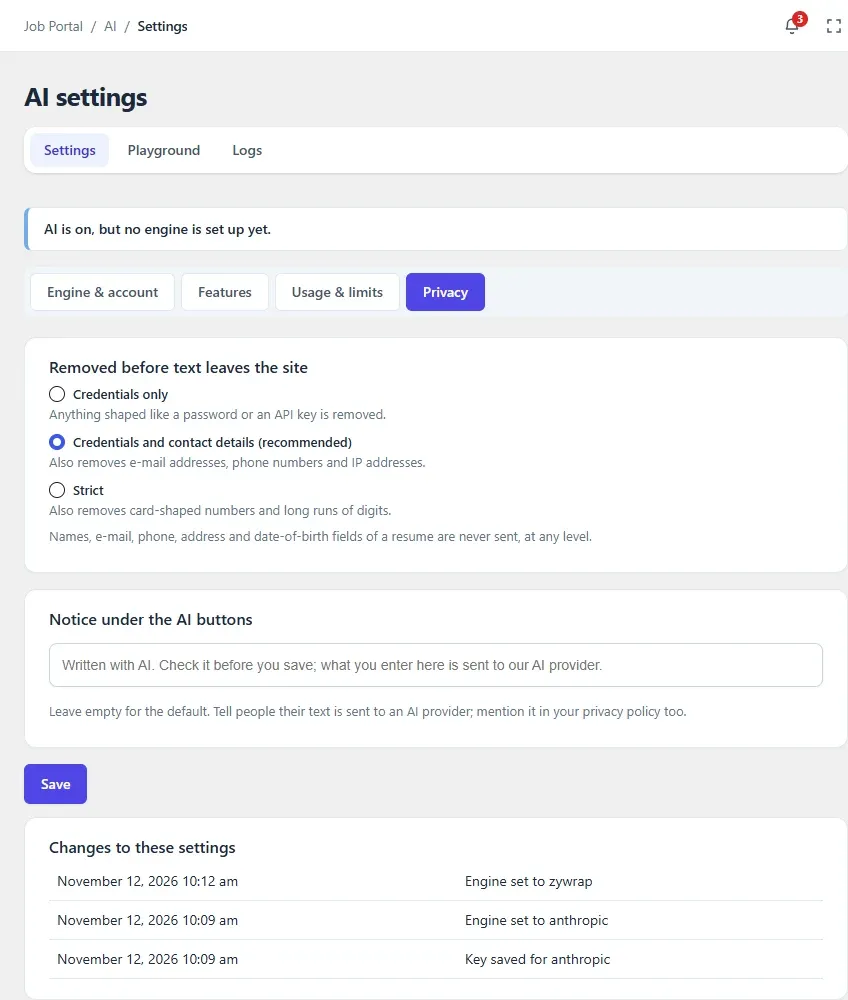
On the Privacy tab, Removed before text leaves the site sets what is taken out of the text before it is sent:
| Level | What is removed |
|---|---|
| Credentials only | Anything shaped like a password or an API key |
| Credentials and contact details (recommended) | Also e-mail addresses, phone numbers and IP addresses. This is the default |
| Strict | Also card-shaped numbers and long runs of digits |
Names, e-mail, phone, address and date-of-birth fields of a resume are never sent, at any level.
Notice under the AI buttons is the line people see under every AI button. Leave it empty for the default: Written with AI. Check it before you save; what you enter here is sent to our AI provider. Tell people their text is sent to an AI provider, and mention it in your privacy policy too.
Select Save. Changes to these settings lists the last 20 changes to the AI settings, with when and by whom: switching AI on or off, the engine, keys, features, limits, the privacy level, and connecting Zywrap or claiming licence credits.