

AI tools
The AI tools are short writing jobs that sit beside the screens where they help: ideas for a job title, a check of a job post, questions for candidates, e-mail drafts, better resume wording, and how well a job seeker matches a job. Each one runs only when someone presses its button, and the result is shown for them to read and copy. Nothing is saved or sent to anyone by the tool.
They need AI to be set up on the site. See AI settings.
The tools
Section titled “The tools”| Button | Who | Where | What you get |
|---|---|---|---|
| Suggest titles | Employers, administrators | Job form, under the description | Clear, searchable job titles for the job on the form, each with a few words on why |
| Check this job post | Employers, administrators | Job form | The main problems with the post, such as missing pay or location, unclear or biased wording, jargon or length, each with a fix |
| Screening questions | Employers, administrators | Job form | Job-related screening questions, each with what a good answer shows |
| Interview questions | Employers, administrators | Job form | Structured interview questions grouped by the skill each one tests, with what a strong answer includes |
| Draft a rejection e-mail | Employers, administrators | Each application in WP Job Portal → Candidates → Applications, and in the employer’s list of applicants for a job | A short, respectful rejection e-mail with a subject line |
| Draft an offer e-mail | Employers, administrators | The same places | An e-mail offering the candidate the role, with a subject line |
| Improve resume wording | Job seekers, administrators | Under the resume form | A clearer version of a sentence or paragraph you paste in |
| How well do I match this job? | Job seekers, administrators | The job’s page on the site | The job’s requirements you clearly meet, the ones that are unclear, and the gaps |
The job form tools work in wp-admin and on the employer’s Add Job page. They read what is filled in on the form, so fill in the job first.
Use a tool
Section titled “Use a tool”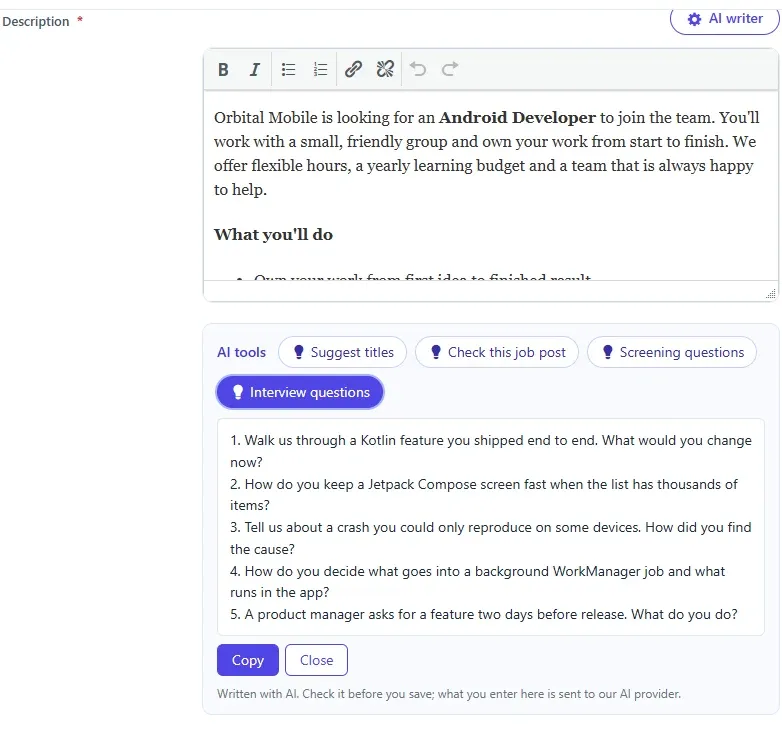
-
Find the AI tools bar and select the button.
-
Some tools ask for text first:
- Improve resume wording: paste a sentence or paragraph from your resume. It is required.
- Draft a rejection e-mail and Draft an offer e-mail: optionally add what to mention, for example we will keep your resume on file, or the start date and next step.
Then select Write it.
-
The result appears under the bar. Select Copy to copy it, then paste it where you need it. Close hides it.
E-mail drafts
Section titled “E-mail drafts”The AI never sends an e-mail. The draft is for you to copy into your own e-mail and send.
The candidate’s name is not sent to the AI. The draft greets [Candidate name] and signs off with placeholders such as [Your name]. It is written from the job title, the company and the details you added; terms you didn’t give, such as a salary or start date, are left as placeholders in square brackets. Replace the placeholders and read the draft before you send it.
The match check
Section titled “The match check”How well do I match this job? compares the job with the job seeker’s newest resume. If they have no resume yet, it asks them to add one first.
The result is private advice for the job seeker: what they clearly meet, what is unclear, and the gaps, with no score. Nobody else sees it, and it plays no part in their application.
Who sees the buttons
Section titled “Who sees the buttons”A button appears only when:
- AI is switched on and an engine is set up;
- its task is on under WP Job Portal → AI → Settings → Features;
- the person is an administrator, or is signed in as the account type the task is for (employer or job seeker).
Each use counts towards the daily limits. See Set limits.