

Playground and logs
The Playground lets administrators try Zywrap’s catalogue of ready-made prompts (“wrappers”) for any writing job, not only job board text. The Logs list the requests the Playground and the editor button sent to Zywrap.
Both use Zywrap only. The AI writer and the AI tools work with any engine and are counted under Usage & limits instead. See AI settings.
Before you start
Section titled “Before you start”- Connect Zywrap under WP Job Portal → AI → Settings. See Choose an engine.
- On the Zywrap card, select Download the catalogue. Later, Get updates fetches what changed.
Until then the Playground says what is missing: Setup Required: Please add your API Key in settings. or Action Needed: Please sync the Wrapper Catalog (Step 2) in settings.
Runs from the Playground use your Zywrap credits.
Try a prompt in the Playground
Section titled “Try a prompt in the Playground”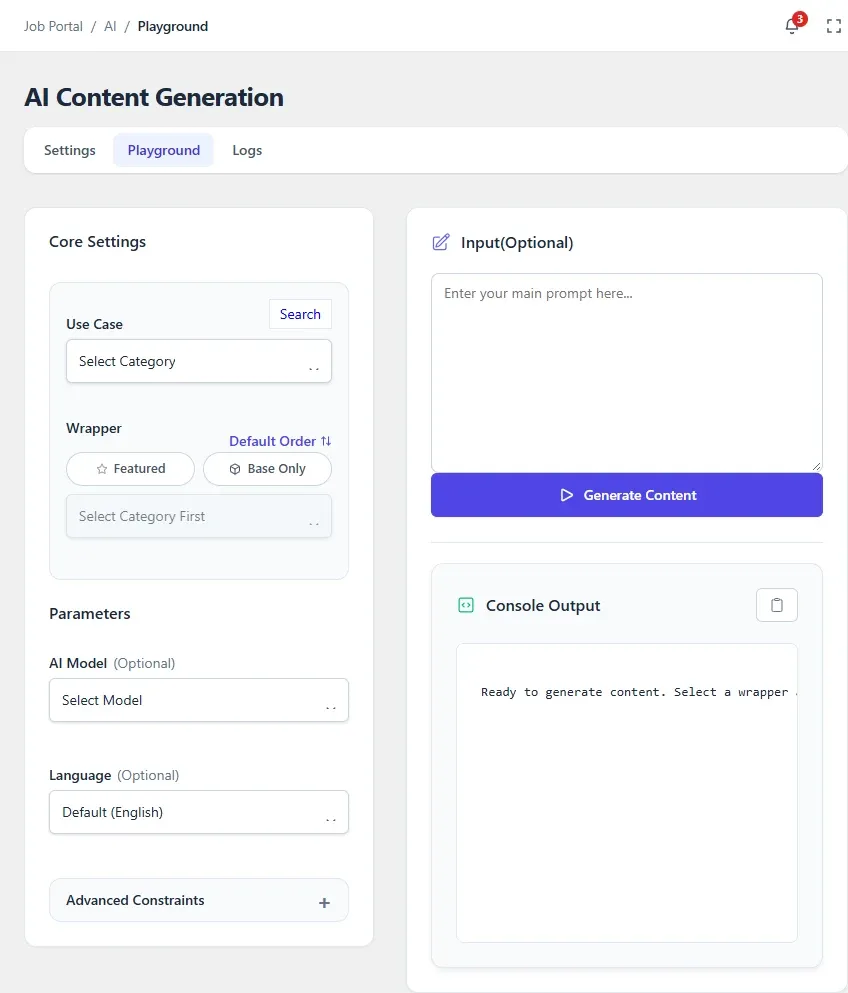
- Go to WP Job Portal → AI → Playground.
- Under Use Case, select a category, then a Wrapper. Use Search to find one by name. The wrapper’s Description and Parameters show what it does.
- If you like, choose the AI Model and the Language. Default (English) writes in English.
- Under Input, enter your main prompt.
- To steer the result, open Advanced Constraints: add Context / Background Data, SEO Keywords or Negative Words, and pick the Tone, Style, Format, Complexity, Length, Audience, Goal and Output.
- Select Generate Content.
The result appears in Console Output. Copy Output copies it; Clear Output empties it. Summarize moves the result into the Context / Background Data box and fills Input with an instruction to summarise it; select Generate Content to get the summary. If the context box already has text, it asks before replacing it.
Use it in the WordPress editor
Section titled “Use it in the WordPress editor”On sites that use the classic WordPress editor, posts and pages have an AI Content Generation button next to Add Media. It opens the same catalogue: choose a wrapper, write your input and insert the result into the post.
The same button appears on the job and company description in wp-admin while no AI engine is set up, so you can find your way to the settings. Once an engine is set up, the AI writer takes its place.
Read the logs
Section titled “Read the logs”Go to WP Job Portal → AI → Logs. The screen is titled Zywrap Logs.
The top shows Total API Runs (24h), API Errors (24h) and Top Model Used. The table lists each request with its Status, Action & User, Wrapper / Model, Performance & Tokens (tokens in and out) and Time. Select a row’s Details to see the error, if there was one.
To narrow the list, type in Search by Action, User or Wrapper…, or choose Filter by Status (Success, Error, Limited or OK/Internal), then select Filter.
The log also records key checks and catalogue downloads.